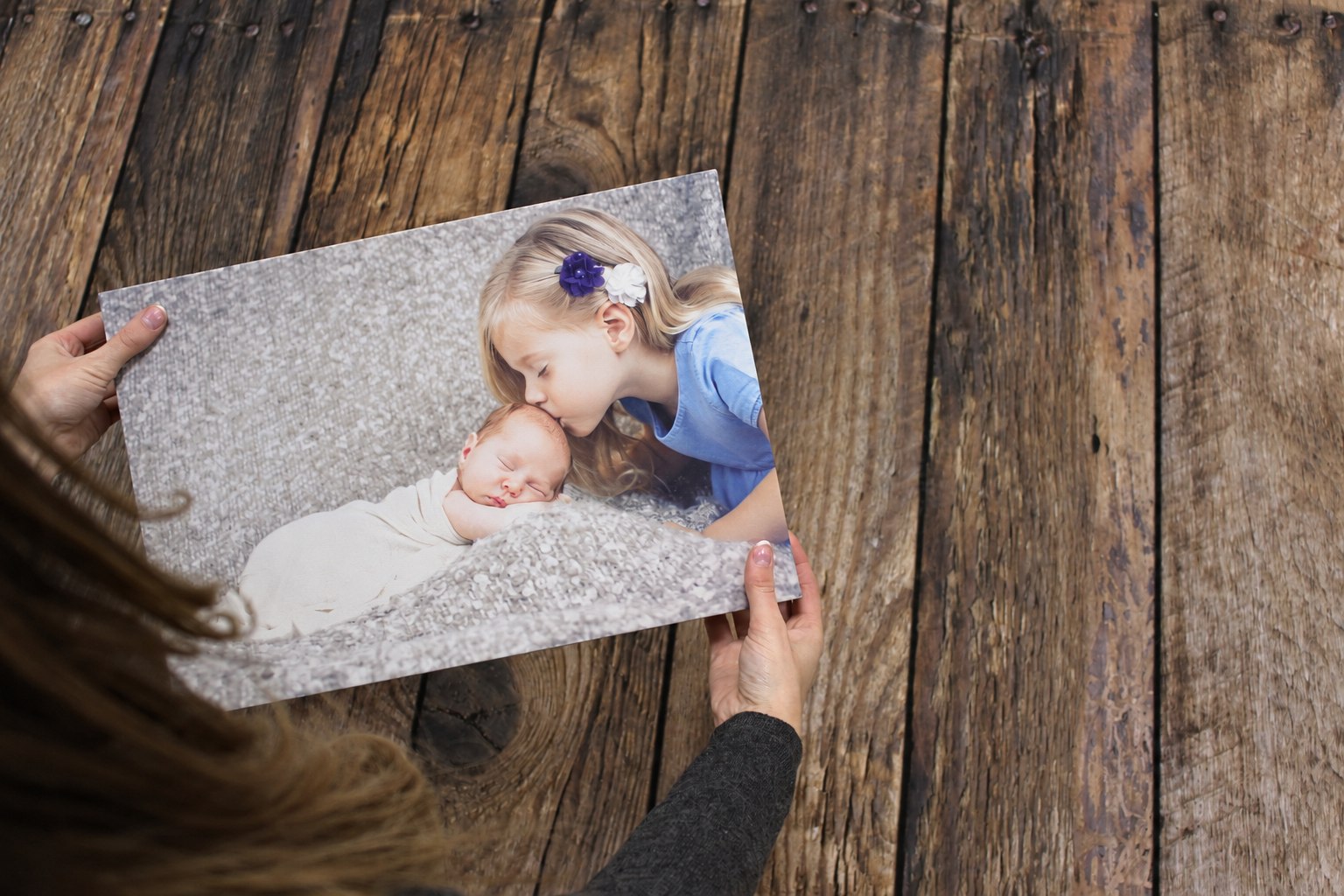
Yes, a photograph received through WhatsApp can be printed on canvas. Whether it suits the size you want depends on the file you received, how sharp the photograph was to begin with and how much you need to crop it.
The best first step is to ask the person who took it for the original. That can make more difference than any editing you do afterwards.
Why a picture can look fine in a chat but soft on the wall
A phone displays a photograph in a small area. A canvas might spread that picture across several times the width. Soft details that were easy to miss in the chat become easier to see when enlarged.
WhatsApp says shared media may be compressed. Selecting HD can improve the version you send, but an HD label is not a promise that a photograph will be suitable for every print size. There can also be blur from movement, poor focus or low light in the original photograph.
Think of these as two separate questions: do you have the best available file, and is the photograph itself sharp enough for the print you want?
Ask for the original, not another copy of the chat picture
A useful message to send is:
“Could you send me the original photo from your camera roll as a file, please? I want to print it, so the full-size version would really help.”
The sender needs to find the photograph they took, rather than save your message attachment and send that back. Resending the same reduced copy does not recover what was removed earlier.
WhatsApp supports sending files without compression. The sender can use the attachment menu's Document option to select the original image file; the available picker depends on their phone and where the image is saved. If that is awkward, a download link to the original file is another sensible route. Check that it offers the full file, rather than a small preview.
For an ordinary photo message, the sender can select HD before sending. WhatsApp's current HD instructions also explain the default setting under Settings → Storage and data → Media upload quality. Changing the setting does not improve a picture already sent: the original needs to be sent again.
Save the attachment instead of taking a screenshot
Download or save the received image itself. A screenshot records what was displayed on your screen, potentially including a reduced view, interface elements or empty borders. It is an unnecessary extra step away from the original photograph.
Once saved, open the image information or details panel in your phone's photo app or on your computer. Look for dimensions expressed in pixels, such as 3000 × 2000. File size in megabytes can be useful context, but it is not a quality score: compression and picture content both affect it.
Work out how far those pixels will stretch
Divide the number of pixels along one side by that side's intended print measurement in inches. The result is pixels per inch, or ppi. Use the dimensions remaining after any crop.
For example, a 3000 × 2000 pixel landscape photograph has these pixel densities at matching 3:2 print proportions:
| Printed size | Pixel density |
|---|---|
| 12 × 8 inches | 250 ppi |
| 18 × 12 inches | About 167 ppi |
| 24 × 16 inches | 125 ppi |
These are calculations, not pass-or-fail quality ratings. A sharp photograph may be more convincing than a larger file containing motion blur. Viewing distance and the subject matter also affect how demanding the result is: tiny lettering needs different consideration from a soft, distant landscape.
A reduced 1500 × 1000 pixel copy has half those densities at the same sizes. That is why getting the original is worth the extra message.
Cropping can use up the detail you needed
Suppose your photograph is 3000 × 2000 pixels, but the person you want to print occupies a 1200 × 1600 section. Once you crop to that person, the other pixels no longer help the print.
At 12 × 16 inches, that crop would provide 100 ppi. It might still hold an important memory, but it should not be judged as though all six million pixels from the original photograph were being used.
Before selecting a large canvas, inspect the face and important details at a larger on-screen view. Look for blocky edges, smeared hair and obvious blur. Do not rely entirely on the small builder preview, which is intended to help position the photograph.
What if this is the only copy?
You may still have worthwhile options. A smaller canvas spreads the available pixels over less space. Keeping more of the original composition avoids throwing away detail through a tight crop. You can also choose a different photograph for the large wall print and keep this one at a smaller size.
Simply changing a resolution box from 72 to 300 does not create new photographic information. Enlargement tools can add pixels, but they do not turn guessed detail into an untouched original. Be particularly careful with faces: a cleaner-looking result is not useful if it no longer looks like the person.
If you are unsure, contact our workshop with the image and the size you have in mind before ordering. Tell us that it came through WhatsApp. We would rather help you make a sensible choice than have you assume every uploaded photograph will look equally good at every size.
Explore photo canvas sizes once you have the best available file.
If the original is a paper photograph, follow our old-photo scanning guide to create a new digital copy. For wider size planning, see our phone-photo enlargement guide.