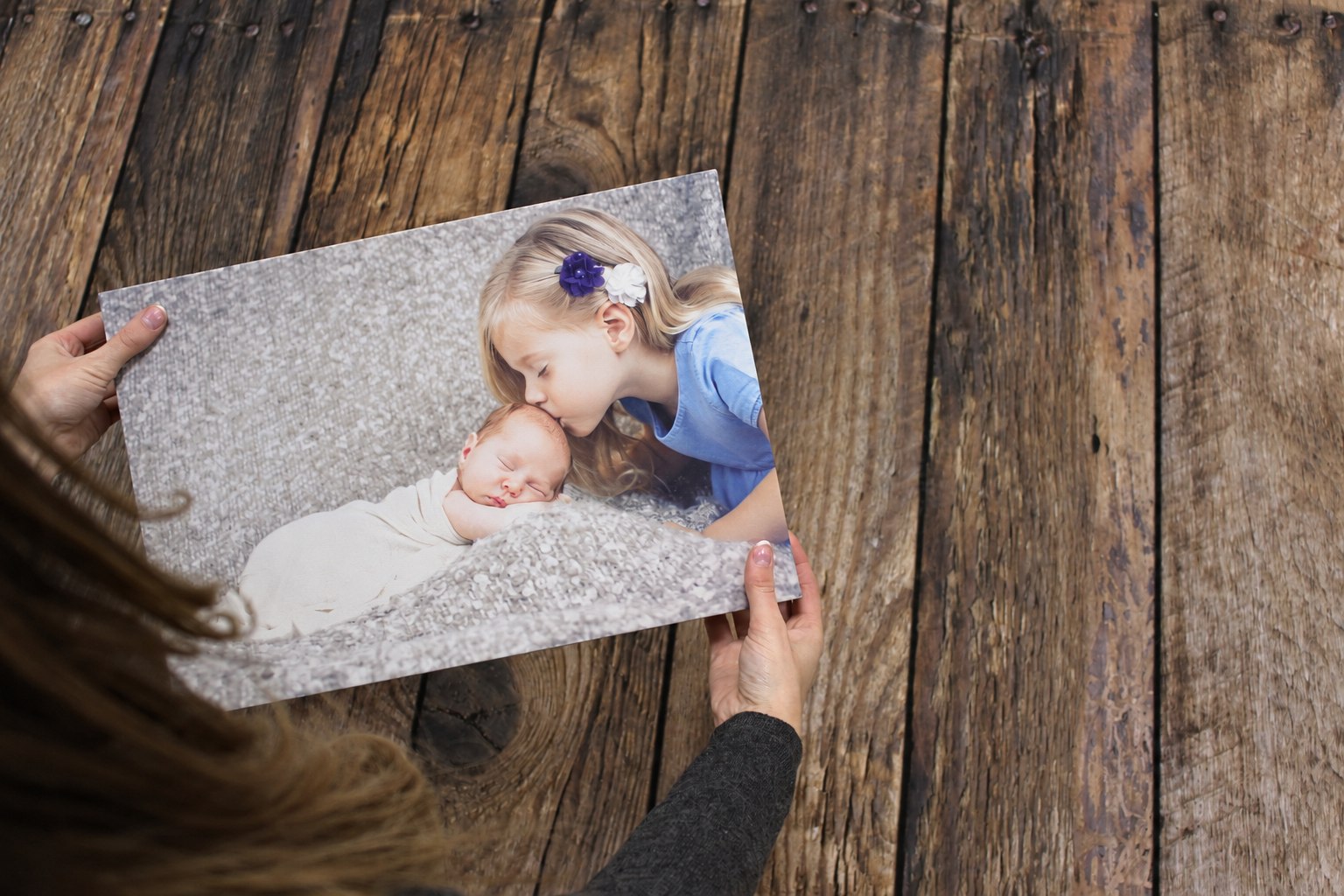
The expression you wanted may be in the video. The smile just after the candles, the dog turning towards you, the little look between two people walking away from the camera. You were recording, so there is no separate photograph. That does not mean the moment has to stay inside the clip.
You can save a video frame as an image and consider it for a canvas or poster. The useful result depends on the frame that was recorded, how you export it, the crop and the size you choose. A lovely moment and a technically useful file are two things to look at together.
This guide shows how to find the moment, export a proper still on a phone or computer, and check the file before printing. It includes a documented extraction example, five personal-picture ideas and editable prompts for comparing candidates. You do not need AI to turn a real frame into a print; an ordinary frame export is often the right first step.
The birthday, pet, wedding, running and family-memory scenes are fictional AI-created editorial illustrations, as are their room views. They suggest moments to look for in your recordings; they are not extracted frames or demonstrations of recovered detail. The separately documented technical frame files come from the stated source clip and show the actual extraction workflow.
Find the moment before choosing the tool
Begin by watching the clip normally. Notice where the expression or gesture happens, then go back to that short section. A frame seen in motion can feel different when you stop it. The sound, movement and frames around it may be carrying part of the emotion, so check that the chosen still says enough on its own.
Make a shortlist around the moment instead of trusting one pause. A fraction before the widest smile may have clearer eyes; a fraction after it may show a more natural expression. You are choosing a picture from the movement, rather than looking for a single universally correct frame.
Write down a rough time or use a simple file label for each candidate. Keep the clip unchanged and export the possibilities separately. That lets you return for another look without accidentally replacing the source or losing the point where the moment happened.
It can help to give each candidate a different job. One might keep the whole setting, another the clearest expression and another the gesture you remember. Compare those purposes before judging them as nearly identical pictures. If the meaning depends on two people looking towards one another, a sharp close-up of only one face may lose the thing you wanted to keep.
Check whether a separate photograph from the same occasion already exists. You may prefer the frame because its expression is different, or find that the still photograph gives you a more useful file. The aim is the picture you want on the wall, rather than proving that the video must supply it.
Editable prompt: Choose the purpose
Name the moment you want to keep
Help me plan a still-picture choice from my own video. The moment matters because [my reason], and I want to show [expression, gesture, pet, person or setting]. The possible print is for [person and room], with [rough size or no size yet]. Suggest what to look for just before, during and after that moment, separating emotional timing from visible clarity. Do not invent a frame, identify people or assume the loudest or most dramatic instant is the best photograph. Help me make a small candidate list and a simple naming plan. I will export actual frames locally and inspect them before choosing.
Keep the best original video
Find the recording in the phone, camera or cloud library where it was originally saved. A clip downloaded from a social post or forwarded through messages may be smaller or more compressed. If somebody else filmed it, ask for the original file or an appropriate original-quality download.
Keep that source untouched. Use a copy for trims, conversion or experiments, and save stills with their own names. Repeatedly sending a clip through smaller previews does not help the frame you eventually extract. Our original-file sharing guide explains the same principle for photographs.
Check the rights as well as the file. A wedding film, a sports video or a clip found online can belong to somebody else. Paying for a film or appearing in it does not automatically transfer its copyright. Ask for permission covering the use you want, and keep the terms with the source. Our technical demonstration uses its stated source terms; that does not grant rights over unrelated recordings.
Think about how much of the clip you actually need to share. Exporting a few candidate stills locally can avoid sending a long private family recording just to discuss one expression. If you use a cloud or AI service, choose what you upload deliberately and check its current settings and terms.
A frame is different from a picture of the player window
A proper frame export asks the video tool to save an image from the recording. A normal screen capture records what your screen was showing: possibly a scaled player, controls, black bars, subtitles or other windows. Those are different operations, even if both files happen to be PNG images.
A player may display a large recording inside a small window. Capturing that window can leave you with fewer useful image pixels than an export from the underlying video. The reverse is also possible: enlarging a small video on a big screen can make a large screenshot without adding recorded detail. File size alone cannot tell you which happened.
That is why we begin with the frame-export command and then check the saved dimensions. Do not assume a file is full resolution because it looks large on screen or has a high-quality name. Player processing, aspect-ratio handling and export settings can affect the result; inspect the actual file you intend to print.
A snapshot command inside a media player is not necessarily the same as your computer’s screen-capture shortcut. VLC calls its frame-saving command a snapshot. Use that actual video command rather than capturing the application window, and check its output preferences in your installed version.
Save a frame on your phone
Look for a genuine frame-export feature in the app that holds the original clip. Its name and availability depend on the app, device and version. When you use it, open the saved image afterwards, check that it contains just the picture and find its width and height in pixels. Keep the video as well.
iPhone Photos where the frame-saving control is available
Apple’s iOS 27 guide documents opening a video in Photos, pausing at the wanted frame, opening the More menu and choosing Save Video Frame as Photo. The saved photograph goes into the photo library. Its position can depend on whether your library is sorted by when items were added or captured.
Use the controls in your own version rather than assuming every iPhone has the same menu. If the feature is absent, you can transfer the original video to a computer and use one of the routes below. Do not substitute a smaller message copy merely because it is easier to open elsewhere.
Google Photos on a supported phone
Google’s Photos editing guidance documents Export frame for video. Open the original video, enter its editing controls, select the frame and use Export frame where that control is available. Follow the current instructions for your device; different gallery apps can offer different tools.
After saving, compare the exported picture with the moment you intended. It is easy to move slightly when seeking through a clip on a small screen. Export a few neighbouring choices if that helps, then look at their expressions and important detail at a larger view before settling on one.
Export on a computer for a closer look
A larger screen can make selecting the moment easier, and it gives you more room to compare candidates. You can still begin with a phone recording. Transfer the original file, open it locally and keep a simple folder for the source and exported frames.
Photos on a Mac
Apple’s Mac Photos guide describes opening the video, moving the playhead to the frame and choosing File → Export → Export Frame to Pictures. It produces a TIFF in the Pictures folder under the documented workflow. Check your installed version’s menus and the actual exported file.
If your printing route needs another format, use an editor to export a suitable JPG or PNG while retaining the intended pixel dimensions. Changing the filename extension is not a conversion. Keep the original frame export too, and inspect the converted copy for the right crop, orientation and colour appearance.
VLC on a computer
VideoLAN’s VLC documentation describes the Video menu’s Snapshot command; some versions call it Take Snapshot. Open the original video, pause at the candidate and use that command. Snapshot format and destination can be configured in the video preferences. Use the menu in your build rather than relying on a keyboard shortcut that may differ.
If your version provides frame-step controls, use them to inspect the nearby moments. Otherwise seek slowly and save a few candidates. Check the destination folder and inspect the output dimensions rather than assuming every snapshot setting preserves the same size. Give the selected still a clear name without deleting its source clip.
Editable prompt: Export a real frame
Choose a route for the device you actually use
Help me choose a documented way to export a still from my own video. My device and app are [device, operating-system version and app], and the best source file is [where it is stored]. Ask which frame-export controls I can actually see. Prefer the app’s real frame export or a local desktop route; do not invent a Save Frame button for every device or tell me a normal screen capture is automatically the original resolution. Give me short steps based on current official documentation, then a checklist for the saved image’s content, dimensions, orientation and filename. Keep my source video unchanged and flag any version-dependent instruction.
One useful refinement: “Use the original clip and the actual video snapshot command. Save a new frame file, inspect its dimensions and keep the source untouched rather than passing it through another small preview.”
An optional FFmpeg route for people who prefer a precise command
You do not need the command line to make this print. If you already use FFmpeg, it provides another way to save a decoded frame. Its official documentation distinguishes input and output seeking, and a time request still needs checking against the actual moment you wanted.
ffmpeg -i "my-video.mp4" -ss 00:00:00.500 -frames:v 1 "chosen-frame.png"This example places the seek after the input, decodes up to the requested time and writes one frame. Replace the local filename and time with your own; the example time must fall inside your recording. It does not increase the recording’s resolution or restore detail. Use an unused output name so an existing chosen frame is not replaced unintentionally.
The FFmpeg documentation explains the options in more detail. Encoded timing, variable frame rates and the exact frame selected deserve care. If a particular frame number is important, verify it with the source and an appropriate frame-selection method instead of assuming a rounded timestamp is an archival identifier.
Editable prompt: Optional technical route
Ask for an extraction command you can check
Help me plan a local FFmpeg extraction from a video I can use. The actual local filename is [name], and the wanted moment is around [timestamp]. Explain the effect of placing -ss before or after the input and write a one-frame PNG command with a new output filename. Do not add upscaling, sharpening, frame interpolation or AI restoration. Tell me what source properties and saved-image dimensions to check, and explain that the selected timestamp needs visual verification. If I need an exact frame index, ask about the source timing rather than inventing one. Do not claim you have run the command or inspected the resulting file unless you actually have.
A documented extraction example
Our real demonstration uses Pangong Tso Waves by Satalah, published on Wikimedia Commons under CC0. It is a 3.8-second, 1920 × 1080-pixel lake clip, used here as an educational source rather than a customer’s recording. The source video plays below, followed by two frames extracted from it.
Pangong Tso Waves by Satalah, CC0; original1920×1080 WebM retained unchanged.
Actual frame 15 at 0.500s from Pangong Tso Waves by Satalah, CC0. Exported at the source1920×1080 pixels without resizing, sharpening or AI reconstruction. This is an educational extraction example, not a customer photograph.
Actual frame 90 at 3.000s from Pangong Tso Waves by Satalah, CC0. Exported at the source1920×1080 pixels without resizing, sharpening or AI reconstruction. This is an educational extraction example, not a customer photograph.
The first image is zero-based frame 15 at 0.500 seconds; the second is frame 90 at 3.000 seconds. Both are actual 1920 × 1080 PNG exports, without resizing, sharpening, cropping or AI reconstruction. Their decoded RGB pixels were checked against the same selected frames decoded directly from the source.
Look at how the waves change between the two positions. This is a comparison of recorded moments, with both files produced by the same extraction method. Neither is a player-window screen capture, and their differences should not be read as an enhancement or sharpness test.
Open the actual images rather than judging only the page previews. Compare the exported dimensions, the content retained around the edges and the moment selected. A browser thumbnail is a smaller display of its source file; it should not be confused with a new higher-resolution photograph.
This demonstration is a workflow example, not a promise that every video contains a sharp printable face. The recording decides what was captured. A frame export can give you the information in a decoded frame without making a missing expression, distant feature or blurred subject newly real.
Five personal moments worth looking for
These fictional illustrations suggest the kinds of moments you might find. They are not a requirement to make a video look like polished photography. Your own clip may be imperfect and still hold the picture you want, with a thoughtful size and an honest understanding of its detail.
1. The expression around the birthday candles
The picture may be the look before somebody blows, the reaction afterwards or the small exchange beside the cake. Watch the short section more than once. The widest smile can be lovely, but a nearby instant may show clearer eyes or a hand in a more natural position.
In our imagined example, a mother and child lean towards a cake together. Their relationship is the point of the image. With your own clip, decide whether you want the whole gathering or that smaller moment, then keep the people and hands that belong to it inside the crop.
A fictional photographic-style illustration of a birthday moment. It suggests the expression you might look for in a personal clip; it is not a frame extracted from a real video.
Editable prompt: Birthday video
Compare the moments around a birthday expression
Help me compare these actual exported candidates from a birthday video, labelled [A, B, C]. The important people and gesture are [my notes]. Describe the expressions, visible eye detail, hands, cake and surrounding context separately. Suggest which moment I should inspect more closely and what a full-scene or closer crop would keep. Do not assume the largest smile is best, invent a sharper face or generate a replacement photograph. If a detail is too small to judge, say so. Help me choose a picture that works by itself without relying on the video’s sound or movement to explain it.
One useful refinement: “Give the shared look more weight than the widest smile. Keep both important faces and the hand beside the cake inside a comfortable crop.”
2. The familiar face in the movement
A pet clip may hold the head turn you know, the face after a game or the pause between runs. Start with the expression and familiar markings. A little movement in the scene can belong to the story, but it cannot supply eye detail that was never clearly recorded.
Our terrier illustration keeps the complete animal and its space around the ball. Your own chosen frame may suit a closer portrait instead. Check ears, paws, tail and supporting ground according to the kind of picture you intend, rather than squeezing every pet into one preset shape.
A fictional photographic-style illustration of a playful pet moment. It is a subject idea for your own clip, not a real exported video frame or a blur-recovery demonstration.
Editable prompt: Pet video
Find the pet moment without inventing the pet
Compare these exported pet frames for a personal print. The features I care about are [expression, markings, ears, pose], and I want [a face portrait / the complete animal / the action and setting]. Describe visible clarity in those features and what motion contributes. Keep body and ground checks appropriate to the intended crop. Do not reconstruct hidden paws, invent fur or treat an AI-sharpened face as the original animal. Identify which candidate I should inspect in the actual file and whether a nearby quieter moment or a smaller print might be useful. Leave the source and natural features unchanged.
One useful refinement: “Keep the familiar expression and markings first. Compare a quieter neighbouring moment before trying to make the fastest movement look perfectly sharp.”
3. The look during a little walk
Wedding video often records movement between the posed photographs: a hand squeeze, a glance after the ceremony or two people walking together. A still from that movement can feel personal without replacing the photographs already taken. Check the frame as a picture in its own right.
Keep enough of the setting when it helps explain the day. A close crop can make the expression clearer, while a wider view may keep the place and the way people are moving. Inspect hands, dress edges and faces, and check the filmmaker’s terms for making a print from their work.
A fictional photographic-style illustration of a wedding moment. It suggests an expression to look for in your own recording, not an actual exported frame or photographer commission.
Editable prompt: Wedding video
Choose a wedding still with the day still in it
Help us compare these exported wedding-video frames. We want to remember [the expression, gesture, movement or place], and the proposed display is [room and approximate size]. Compare emotional timing, important face detail and the context around the couple. Suggest a closer and a wider composition where the actual files allow them, explaining what each would lose. Do not invent venue details, identify guests, remove people or regenerate faces. Flag unclear hands, fabric edges or motion for our own inspection. Remind us to check the filmmaker’s print-use permission separately from choosing an attractive frame.
One useful refinement: “Retain more of the path and setting because they are part of the memory. Compare the nearby frames for natural hands and eyes before tightening the crop.”
4. The expression after the effort
A sport picture can be about achievement rather than the fastest action. The smile after a run, a look towards somebody supporting you or a pause beside a finish can make a meaningful print. You may find a clearer still slightly away from the peak movement.
Inspect limbs and the part of the body that carries the story. Some motion softness can be expressive; a face that is too blurred for the purpose is another concern. Our imagined park runner is a subject idea, not evidence that a fast-moving recording can always become a sharp portrait.
A fictional photographic-style illustration of a personal sport moment. It shows a subject idea, not an extracted race frame or a guarantee that movement can be made sharp.
Editable prompt: Sport video
Separate achievement from the sharpest action frame
Help me compare these exported sport-video frames. The achievement or relationship I want to remember is [my explanation]. Consider the action, expression, visible face detail, body position and supporting setting. Include the moment just before or after peak movement as an option. Do not diagnose technique, invent an event result or guarantee that motion blur can be recovered. Describe which parts I should inspect at full size and which crop would keep the intended story. If one image is expressive but soft, discuss a sensible display choice rather than declaring it worthless or generating a different person.
One useful refinement: “Look at the expression after the effort, not only the most dramatic stride. Keep the whole meaningful gesture and inspect the face before choosing a large enlargement.”
5. An ordinary exchange you did not photograph
A conversation at the table, someone showing a child how to make something or a familiar room on an ordinary day can matter more than a spectacular event. Video may be the only record because nobody stopped to pose. Choose what makes the moment recognisable to you.
Our paper-plane scene is newly imagined, not an archive or a reconstruction of somebody who has died. With your own old recording, keep the source and the person’s recorded expression. A soft but genuine still may be more valuable than a sharper invented face. Ask about a modest print if the clip has limited detail.
A fictional photographic-style illustration of an everyday family moment. It is not an archive image, recreated deceased person, real video frame or restoration example.
One useful refinement: “Keep the familiar setting and real expression. Suggest the least intrusive crop and a modest size before replacing the background or inventing a clearer face.”
What HD and 4K can tell you, and what they cannot
Check the actual recording properties. Common Full HD video is 1920 × 1080 pixels; common UHD 4K is 3840 × 2160. Other dimensions, orientations and formats exist, so the label alone is not the file inspection. A phone capable of large still photographs does not make every video frame use that still-photo pixel count.
For a direct check of a saved image, open it in Photopea and look at Image → Image Size. Read the width and height in pixels, then close without applying a change. Your device’s file information may also show them, with the labels depending on its app and version.
| Hypothetical source frame | Frame pixels | At 12 inches wide, before cropping |
|---|---|---|
| Full HD example | 1920 × 1080 | 160 pixels per inch |
| UHD 4K example | 3840 × 2160 | 320 pixels per inch |
These are calculations from example dimensions, not recommended minimums or approvals for the demonstration clip. More available pixels can give you more room for a crop or enlargement, but they cannot decide whether the important face is focused or the image has compression damage. Judge the actual frame and intended display together.
A small subject in a large frame may still occupy few useful pixels. Cropping tightly around a distant person can remove most of the source. Check the dimensions of the saved crop, not only the video’s headline resolution. A wider picture with context or a smaller print may serve the memory better.
Editable prompt: Pixels and intended size
Use actual dimensions rather than a resolution label
Help me calculate possible print relationships for an exported frame. The actual saved dimensions are [width × height pixels], the proposed front size is [dimensions and units], and the crop removes [description or no crop yet]. Calculate pixels per inch where the supplied measurements allow it, without presenting a universal pass mark. Separate that calculation from focus, motion blur, compression and subject size within the picture. Do not infer the original pixels from a chat preview or claim that a 4K label guarantees a good canvas. List the actual file and crop checks I should make before asking the workshop about a size.
One useful refinement: “Use the pixels left after the crop and keep the face-detail question separate. Compare a smaller print rather than approving the image from its 4K label.”
Motion blur, compression and timing are different questions
A video is designed to be watched in motion. A single frame can show softness that felt less noticeable while it played. The camera movement, exposure during that frame and subject movement can all affect the result. Exporting preserves what the frame contains; it does not turn it into a separately captured still photograph.
Compression can also leave smudging or block-like detail, particularly in difficult areas. Saving the export as PNG avoids adding one new lossy JPEG save at that point, but it does not reverse losses already present in the recording. The best source clip is still worth finding first.
Look at neighbouring frames before trying an enhancement. You may find a more useful expression or clearer moment without reconstructing anything. If the only meaningful frame is soft, decide whether that character is acceptable for a considered size. A precious image does not need to be technically perfect to deserve a place.
Be careful with promises of recovered detail. Sharpening can change edges; an AI enhancement can invent convincing texture or features. Compare any candidate with the original export, particularly faces, hands, pet markings and small wording. Keep the edited interpretation separate from the recorded still.
Choose the front shape before losing the edges
Many landscape videos are wide, while phone recordings can also be portrait or square. The frame’s natural shape is a useful starting point. A square or narrow portrait print can remove people or context from a wide recording. Try the actual crop on a copy instead of choosing a popular size first.
Look at every edge: heads, hands, ears, paws and the direction a person is moving or looking. A closer portrait can be deliberate and effective. It is a different choice from accidentally losing somebody at the side. Keep both the full frame and the chosen crop so you can compare what changed.
Check the orientation after export, especially when a recording was made with a phone held vertically. The saved image should show the scene in the intended direction. If it needs rotation, work on a copy and verify the dimensions afterwards. Do not stretch a portrait image into a landscape rectangle simply to fill the selected front; that changes the people and objects you recognise.
Black bars need a separate look. They may belong to the player’s display window, or they may already be part of an edited video. Inspect the actual exported image before deciding which. Cropping bars from a saved picture does not recover content beyond them, and enlarging the remaining centre does not create more recorded detail. Keep the unaltered export so the decision can be checked.
Canvas adds a side-treatment decision. Image wrap can carry content around the sides; mirror or plain side options may be available for the selected configuration. Keep important details within the actual front preview and inspect the chosen depth and finish. Our canvas-edge guide develops that check.
Editable prompt: Shape and canvas edges
Plan a crop that keeps the moment
Help me compare crops for this actual exported frame. The essential content is [people, pet, gesture or scene], and I must keep [named details]. Compare the natural shape with [square / landscape / portrait] possibilities, explaining what each removes. Include changing the print shape or keeping more context before generating new background. Do not invent missing limbs, reconstruct a face or assume a tighter crop is better. Give me an edge checklist for the actual file, then remind me to check the canvas front and selected side treatment in the real builder preview. Treat any proposed crop coordinates as suggestions to verify.
One useful refinement: “Retain both important people and the complete gesture. Compare a wider format before removing the edge detail or asking software to invent more of the scene.”
Use AI for help without pretending it made a better original
You can use ChatGPT to discuss a shortlist, explain an export route or put a crop concern into words. Upload a few exported candidates and label them in your message, then replace the brackets in a prompt here. Ask for observations before asking for an edit.
Some supported ChatGPT upload routes also accept video files, with availability and limits depending on the platform and account. Its current input guidance warns that interpretation can be incomplete or inaccurate. A chat analysis is not proof that every frame, sound or original metadata field has been examined. A local export still gives you direct control over the picture you choose.
Free-plan image and file tools have their own limits; check the current Free Tier guidance rather than assuming a permanent allowance. You can make the entire selection and export without AI. Keep the original video and actual extracted still regardless of the tool you use for advice.
Editable prompt: Optional AI feedback
Compare actual exports without inventing another moment
Compare these actual exported frames, labelled [A, B, C]. The memory I want is [my explanation], and the important features are [list]. Describe visible differences in expression, gesture, clarity, background and edge space. Separate what you can see from anything too small or uncertain to judge. Do not infer original metadata, invent a frame between them, certify identity or approve a large print from the preview. Give me a short keep/check/change list, including a candidate that preserves the real moment even if it is imperfect. I will inspect the downloaded files and make the final choice myself.
One useful refinement: “Give the genuine expression priority over the strongest effect. Flag uncertain detail for inspection instead of replacing it with something sharper-looking.”
Editable prompt: A careful finishing decision
Choose a restrained edit on a copy
Help me plan a modest edit to my chosen exported frame. The issue is [slight tilt / edge distraction / exposure or colour concern], and the recorded features I want to keep are [people, markings, hands or setting]. Prefer ordinary crop and tonal controls on a copy. Explain any difference between adjusting the existing pixels and generating new scene detail. Do not promise blur recovery, identical faces or physical colour matching. Suggest one useful change, a way to compare it with the untouched export and a final check of the actual saved file. Keep the original video and original frame available.
One useful refinement: “Keep the source expression and natural features. Make only the small adjustment we named, then compare the complete image before accepting another effect.”
Make it a picture for the wall
Imagine seeing the frame from your usual place in the room. A full gathering keeps context but makes each face smaller within the same outside size. A closer image may keep the expression clearer. You can choose a pair when two moments deserve their own space rather than force them into one crowded design.
An AI-created styling view based on the fictional wedding illustration. Picture details, crop and apparent dimensions can vary; it is not a photograph of a real exported-frame print or physical quality evidence.
The imagined room view is styling inspiration, not a measured print test. Use a paper rectangle on the actual wall and include any outside frame. The size guide helps compare dimensions, and the hanging guide covers practical fitting choices.
For a precious limited frame, ask the workshop about the file and proposed size before ordering. Explain which expression or detail is the reason for the print. Our photo-quality guide and phone-photo size guide provide deeper file checks without promising that every recording can be rescued.
Editable prompt: Ask about your particular file
Write a useful note about the frame
Help me write a short message to the printing team. I have exported a real frame from [my original video / an appropriately licensed recording]. The file is [actual pixels], the proposed front size is [dimensions], and the important part is [expression, person, pet or scene]. My concern is [focus, motion, crop or another specific issue]. Distinguish the untouched export from any edited candidate and ask what size or shape may be sensible. Do not assume restoration, face reconstruction or custom artwork is included in ordinary print preparation. Keep the message in my voice and give me a version I can check before sending.
Save the file you actually chose
Keep the original video, the untouched frame export and the finished print copy. Open the final image once more and check that it is the right moment, with the intended crop and no player controls. Inspect any added words yourself. A room mock-up is not the flat picture to upload.
Canvas prints start at £14.99 and posters at £5.99, including VAT and standard UK delivery. Compare current sizes and prices and choose the image and display together. Canvas gives a textured stretched surface; a poster provides a smooth matte print for your own frame. Neither finish faithfully repairs a blurred face.
If the print is for a date, allow time to check the frame first. Eligible paid orders with production-ready artwork before 2pm UK time, Monday to Friday, are dispatched for expected next-working-day arrival. Arrival is not guaranteed; bank holidays, image queries and destination exclusions can affect timing. Check the current delivery information.
When the file is ready, upload your chosen image and inspect the actual preview. We make the print in our family-run West Yorkshire workshop. The video keeps the movement; your print can give one moment a place to stay.
A few useful questions
Can you print a photo from a video?
Yes, you can export a real video frame as an image and consider it for a print. Choose the moment, use an actual frame-export command and inspect the saved file. The result depends on the recorded detail, motion, compression, crop and intended size. A meaningful frame can suit a thoughtful modest display even when it is imperfect. Keep the original video and the untouched export, and ask about the particular file if you are unsure which size is sensible.
Is a screenshot the same as exporting a frame?
A normal screen capture records the screen view, which can include a scaled player, controls or borders. A video frame-export command saves an image from the recording. VLC’s video snapshot is one example of the latter, despite the similar name. Check the actual command and the saved dimensions. A large screenshot cannot add recorded detail to a small video, while a small player-window capture can lose useful detail from a larger recording.
Can I save a frame directly on an iPhone?
On versions with the documented control, yes. Apple’s iOS27 guide describes opening the video in Photos, pausing, opening More and choosing Save Video Frame as Photo. Check your own version because controls change. If the option is absent, transfer the original recording to a computer and use a documented export route. Inspect the saved image afterwards and keep the original clip. Avoid assuming that a screenshot or a forwarded video is the best available source.
Can I do it on an Android phone?
Google Photos documents Export frame in its supported video-editing controls. Open the original clip and follow the current instructions for the app and device you actually use. Other gallery apps and versions can differ, so do not rely on a button described for another phone. Check the saved image and its dimensions. If a suitable export control is unavailable, move the original recording to a computer rather than repeatedly compressing or forwarding it.
Does 4K video guarantee a good canvas print?
No. Common UHD4K frames contain more pixels than common FullHD frames, but focus, motion blur, compression and the size of the subject still matter. A distant face can remain small within a large frame, and a tight crop removes pixels. Check the actual exported dimensions and important detail. A pixels-per-inch calculation is useful context, not a universal approval. Choose the file, crop, print size and viewing conditions together.
What if the only important frame is slightly blurry?
It may still be worth printing at a considered size. First compare nearby recorded frames, because another moment may keep the expression with clearer detail. If the important one remains soft, be honest about that character rather than assuming it makes the memory worthless. Sharpening or AI enhancement can change edges and invent features without recovering the original. Keep the untouched export and ask the workshop about the particular file before choosing a large display.
Should I save the frame as PNG or JPG?
Use a format supported by the export tool and your printing route, then inspect the actual saved image. PNG avoids an additional lossy JPEG save at that stage, but it cannot reverse compression already present in the video. A carefully exported JPG can still be useful. Keep an untouched original frame export and avoid repeated destructive saves. If a tool produces TIFF, convert through an editor when needed rather than changing the extension by hand.
How large can I print an exported frame?
Use the actual pixels remaining after the crop and inspect the subject detail. Divide pixels along an edge by the intended size in inches for a PPI calculation, then consider focus, compression and viewing distance separately. There is no single threshold here that approves every frame. A smaller print or wider composition may be more useful than an aggressive enlargement. Ask about the specific file and intended dimensions when you need help choosing.
Can ChatGPT choose the best frame for me?
It can help discuss exported candidates, describe visible differences and suggest checks. Some supported routes also accept video, but analysis can be incomplete or inaccurate and does not prove every frame or metadata field was examined. Your knowledge of the people and moment matters. Keep the original, label candidates clearly and verify the actual files. Treat the answer as another opinion to inspect, rather than a certificate of identity, resolution or print quality.
Can I use a frame from my wedding film?
Check the filmmaker’s terms and obtain permission appropriate to the use. Paying for a film or appearing in it does not automatically transfer copyright. Ask for a good original-quality file or approved frame export rather than taking a low-resolution streaming screenshot. Choose the expression and inspect the crop once the source is settled. A quiet glance or gesture can make a personal picture, with the relevant people and setting retained deliberately.
Can I add words or combine several frames?
Yes, in the artwork you prepare. Add checked wording on editable layers and keep it comfortably away from important subjects and edges. For several moments, consider a pair or a carefully arranged collage so individual expressions remain readable. The outside size alone does not tell you how large each face will be inside the design. Save a clean flat image for printing, with the original frames available for comparison and future changes.
Will canvas make the video frame look sharper?
Canvas changes the material and presentation; it does not faithfully recover missing detail. A textured surface is not a blur-repair method or a guarantee for every portrait. Choose it because you enjoy the finished display, with the source’s limitations understood. A smooth matte poster is another option for a frame you choose separately. The useful checks remain the actual expression, file, crop, size and place where you will view the picture.
Tools and further help
Use the official iPhone, Mac Photos, Google Photos, VLC and FFmpeg guidance for your chosen route. Our photo-selection guide helps when several pictures could belong on the wall.